

Reserve an instance
1
Login to your Hyperbolic account
Log in to Hyperbolic and select GPUs from the navigation. Browse the GPU capacity currently available in the platform.Don’t see the capacity you need? Contact Sales for additional capacity.
2
Choose your GPUs
Select the GPU type you want and select the GPU Count. Available reservation terms and discounted rates will appear below.Longer reservation terms have lower rates.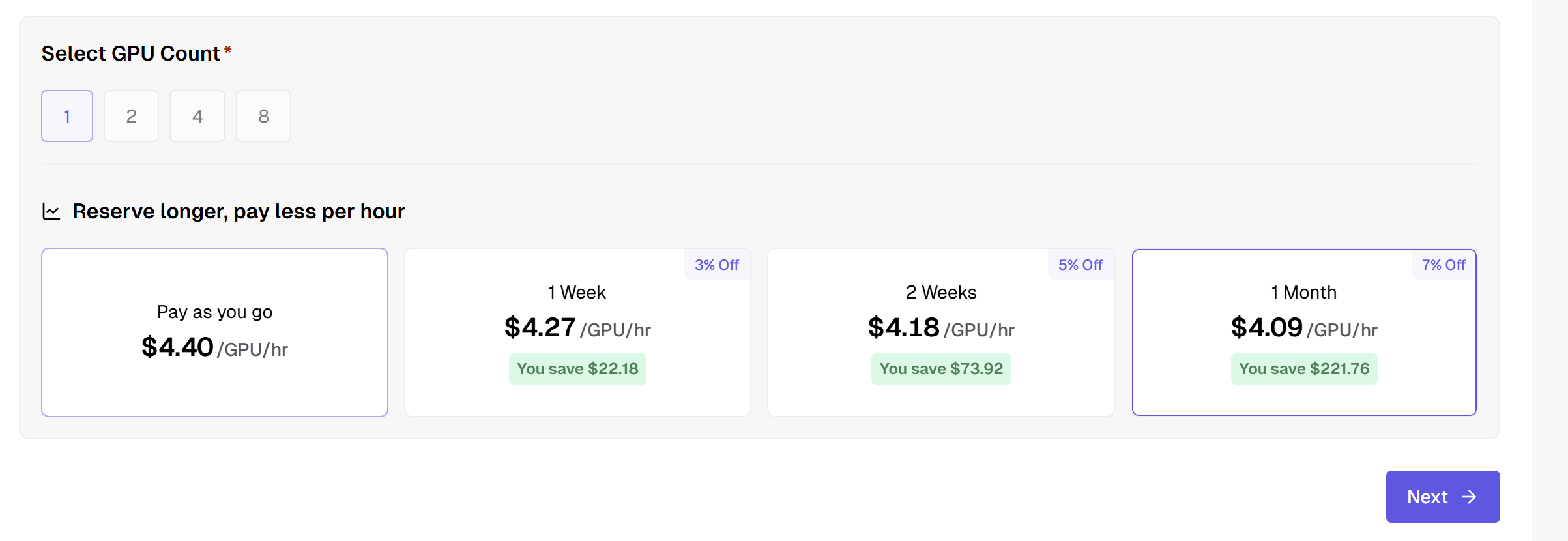
3
Select a reservation term
Choose the reservation length that works for your workload. Review the rate and reservation details, then continue to the SSH key step.Reserved instances are paid up front, so your balance must cover the full reservation cost.
4
Select an SSH key
Select a saved SSH key, or paste a new public key to save it and attach it to the instance. Then complete the instance configuration. See SSH Keys to manage your saved keys.When you’re ready, click Start Building to create your reserved instance.
5
Run your workload
Your reservation begins when the instance is ready and runs for the full reservation term. Before it ends you can extend it from the instance’s details page. When the term ends, Reservation Protection, which is on by default at launch unless you turn it off, keeps the instance running at the on-demand rate. If you turned it off, the instance is terminated when the reservation ends — save any data you need to persistent storage first. See Reserved Overview.
Have a large or long-term commitment? You can also work with our team directly. Contact sales to discuss volume pricing and terms.